Phone route card: the next step, wherever the link is sitting
A small tool that turns three choices into an ordered card for the step you are about to take, using our own phone checks of six agents.
Build a route card for the step in front of you
Choose your phone system, where the item is open and what you want to do next. The card updates as you choose.
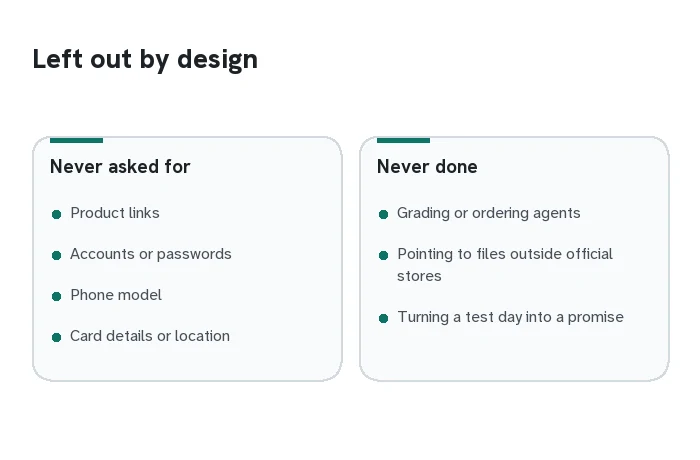
No link, account, phone model, card details or location is asked for or collected. The card does not grade any app. Every agent result comes from our own phone check on 18 October 2026 and can be out of date.
What a partly finished step looks like on a real phone page
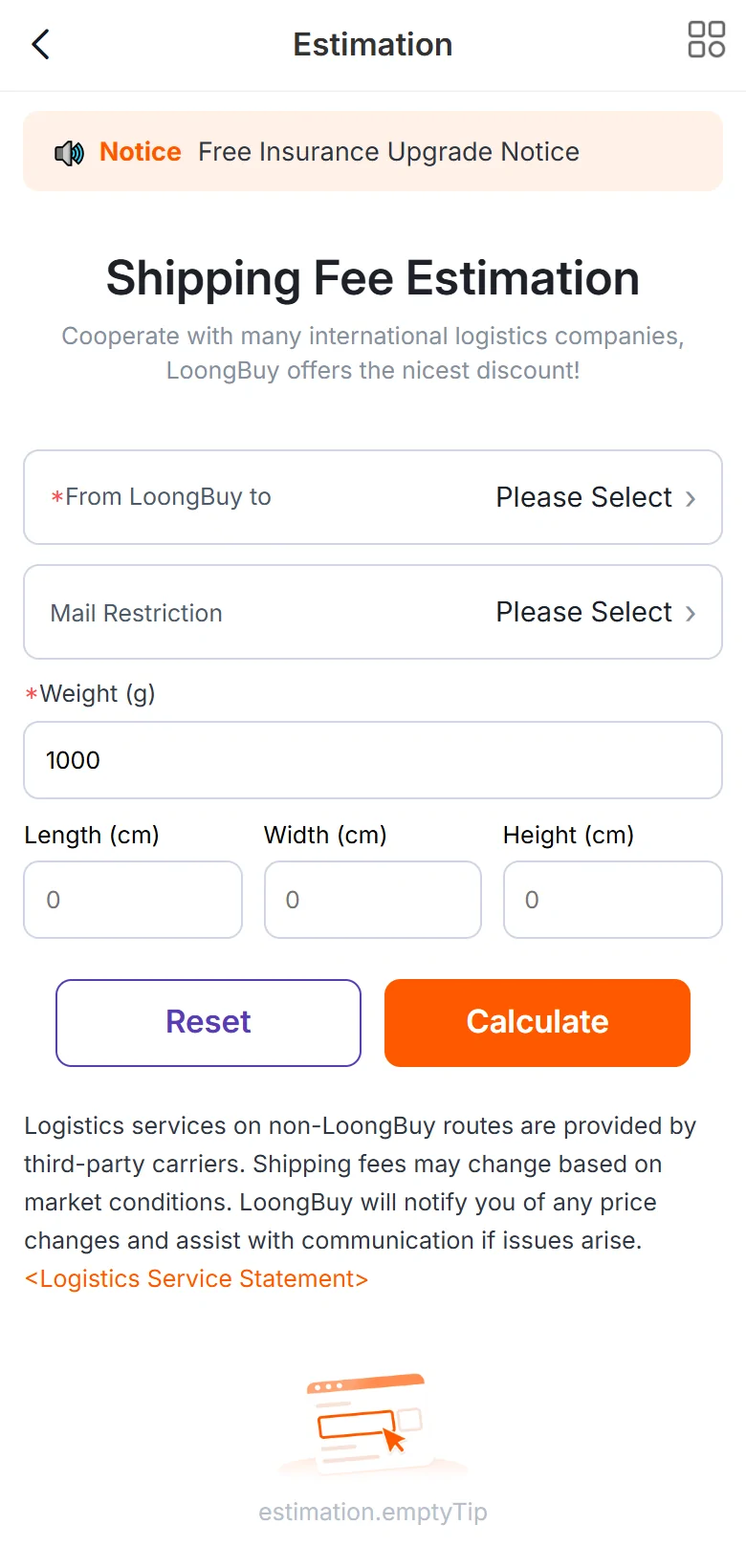
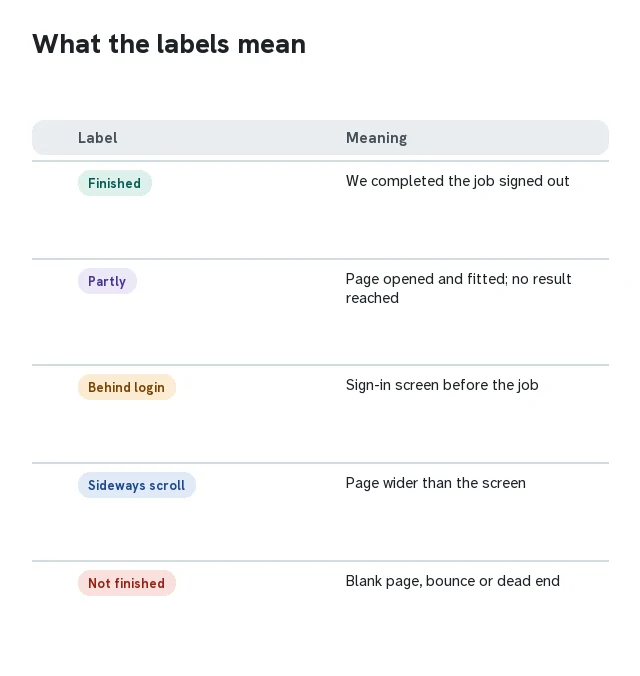
Most results on the card are one of four labels. Finished means we completed the job on the phone page while signed out. Behind login means the page asked us to sign in first, which is normal for carts and photos. Sideways scroll means the page was wider than the screen. Partly means the page opened and fitted the screen, but we did not reach a result. Here is a Partly result from LoongBuy's phone estimate page, step by step.
The page fits the screen
Every field sits in one column; nothing is cut off at the right edge, and there is no sideways scrolling.
The destination is a picker
The first field, From LoongBuy to, opens a list rather than taking typed text. On our test it did not open, so the form could not run.
Sizes are optional
Length, width and height can stay at zero.
The empty state shows a raw label
Under the illustration the page printed estimation.emptyTip, the internal name of a message that was meant to be translated.
Result: Partly
The page loads and fits, but it gave us no price that day. Other agents ended differently.
Leaving an in-app browser with the link intact
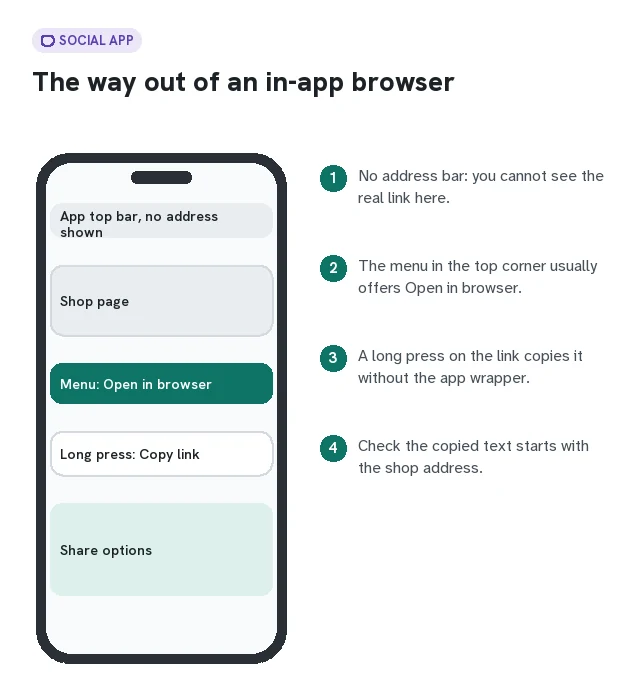
Social apps open links inside their own browser so that you stay in the app. That browser usually hides the address bar, so you cannot see or copy the full shop address, and the back button returns you to the feed rather than to the page you were on. Pasting from there often hands an agent a short redirect link or a link with tracking text after the item number.
The way out is in the app's own menu. On most social apps it is a three-dot or share icon in the top corner of the page, with an entry that names your browser (Safari, Chrome) or simply says browser. Once the page is in your real browser, tap the address bar and copy what is there. If the menu has no such entry, a long press on the link before you open it usually offers Copy link, which copies the address without the app's wrapper.
Check the copied text before you paste it into an agent. It should start with the shop's own address and include the item number. If it starts with a short link from the social app, open it once in your browser and copy the address again.
Jobs that still go smoother on a computer
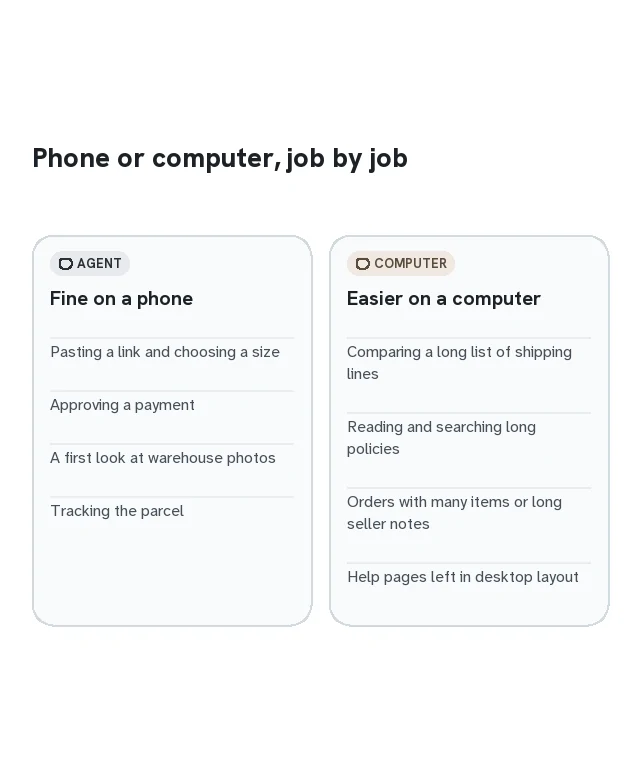
Almost every step of a haul can be done on a phone, and for many people it is the only device they use. A few jobs are still easier with a keyboard and a wide screen, and knowing which ones saves frustration.
- Comparing many shipping lines. Estimate pages list lines with prices, delivery ranges and restrictions. On a phone you see two or three at a time; on a computer you see the whole list and its notes together.
- Reading long policies. Storage, returns and compensation rules run to several screens. Searching for one word inside a policy is quicker with a keyboard.
- Orders with many items or long notes to the seller. Typing exact measurements or several option choices is slower on a phone keyboard and easier to get wrong.
- Help pages that keep a desktop layout. In our check, Superbuy's help centre stayed in its desktop design on the phone, so its text was tiny until we zoomed in.
Everything else, from pasting a link to approving a payment to following a parcel, is a phone job for most readers.
How the route card works, and how to read it
Here is how to use the tool in three taps. Choose iOS or Android first; that changes which store the card points to. Then say where the item is open now. The card only gives link advice for the first two jobs, getting the link into an agent and placing the order, because the later jobs start inside the agent whatever app the link came from. Finally, pick the job. If you have already chosen an agent, select it to see one result instead of six.
Each agent box shows two things. The first line says whether the agent's app is listed in the store for your phone, with the version and update date we read. The second line is our phone-site result for that job, with one of the labels explained above and a short note. The last part of the card says whether a computer would help, and, for paying, what to expect when your bank steps in.
The store links go to each agent's listing in the App Store or Google Play. For Lovegobuy on Android the card links to the agent's own website instead, where its download options are shown.
What the route card leaves out on purpose
The card does not take a link. Tools that read a pasted link and guess the shop are useful, but they are a different job, and a link is the one thing you should not have to hand to a stranger's page to get advice. It does not ask for an account, a card, a phone model or a location.
It also never grades or orders the agents. A label describes what one page did on one day, not how good an agent is overall. An agent that sent us to a sign-in screen may be perfectly usable once you have an account; one that finished a job signed out may still be slow to buy. For the wider comparison, read Weighing agents.
Finally, it does not point to app files outside the official stores. Install agent apps only from the App Store, Google Play or the agent's own website; Red flags explains why copies of agent apps are a real risk.